
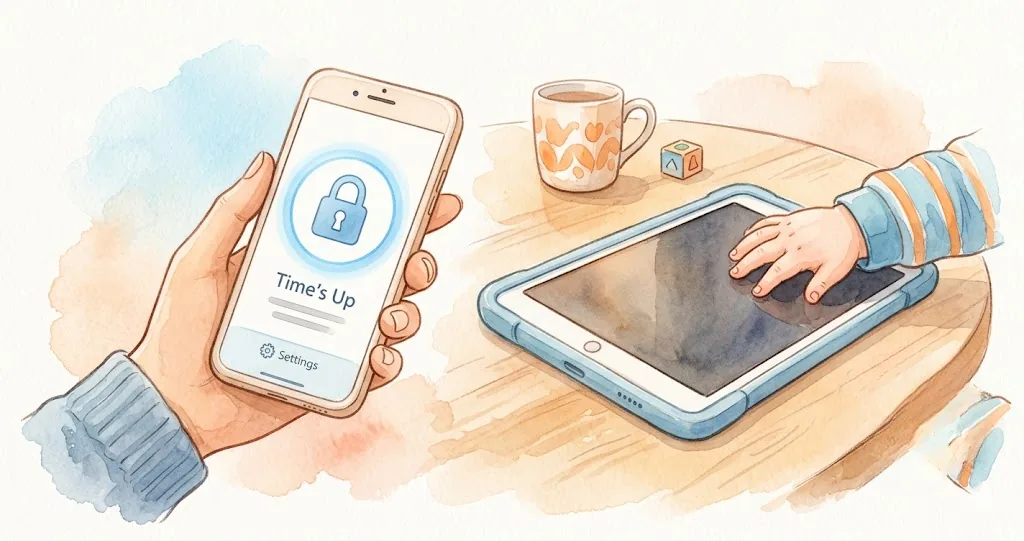
If you have been researching parental control apps, Kidslox has probably appeared on your list. It markets itself as a simple way to limit screen time and block apps across iOS and Android devices. But the marketing copy and the daily experience are often two different things. This Kidslox review covers what the app actually does, what it costs, where it falls short, and whether it is the right fit for your family in 2026.
We reviewed Kidslox across both iOS and Android, cross-referencing with Kidslox review Reddit threads, Trustpilot ratings, and App Store feedback to build a complete picture. Here is what we found.
What Is Kidslox?
Kidslox is a parental control app developed by a UK-based company, available on iOS and Android. It launched in 2015 and has been downloaded over 3 million times. The core premise is straightforward: parents install the app on their own device and the child’s device, then control screen time limits, app blocking, and web filtering remotely from the parent dashboard.
The app operates on a three-mode system:
- Parent mode — unrestricted access, all apps available
- Child mode — only approved apps are accessible, time limits are enforced
- Lockdown mode — the device is essentially locked, with only phone calls permitted
On iOS, Kidslox enforces restrictions through a Mobile Device Management (MDM) profile. On Android, it uses device administrator permissions. Both approaches have trade-offs — which I will cover in the bypass section below.
The target audience is parents of children roughly ages 4 through 14. Kidslox does not position itself as a teen monitoring tool (no social media tracking, no call/text logs), and it does not compete with enterprise-grade solutions like Bark or Qustodio on depth of monitoring. It is, at its core, a screen time limiter.
Kidslox Features Breakdown
Here is a feature-by-feature look at what the Kidslox app actually delivers.
App blocking
This is Kidslox’s strongest feature. You can block individual apps or categories of apps from the parent dashboard. The blocking is applied at the system level (via MDM on iOS, device admin on Android), so the child cannot simply open a blocked app. When an app is blocked, its icon either disappears entirely or shows a lock screen when tapped, depending on the platform.
The category-based blocking is useful for parents who do not want to manage apps one by one. You can block all social media, all games, or all video apps with a single toggle. However, the categories are Kidslox-defined and not always intuitive — some apps end up in unexpected categories, and newly installed apps may not be categorized immediately.
Daily time limits
You can set a total daily screen time allowance (for example, 2 hours), and Kidslox counts down as the child uses the device. When the time runs out, the device switches to lockdown mode or child mode, depending on your configuration. You can also set scheduled blocks — for example, no screens between 8 PM and 7 AM, or during school hours.
The time tracking is functional but basic. There is no distinction between educational and recreational screen time. A child doing 45 minutes of Khan Academy and then 15 minutes of YouTube sees both counted equally toward their daily limit. For families who want to encourage productive screen use, this is a significant limitation. If choosing the right tool is your priority, our guide on the best apps to limit screen time compares options side by side.
Web filtering
Kidslox includes a basic web content filter that blocks adult content, gambling sites, and other categories. On Android, this works reasonably well through the app’s VPN-based filtering. On iOS, the filtering is less granular because Apple restricts third-party apps from deep browser-level monitoring. In practice, determined kids on iPhones can often find workarounds through alternative browsers or private browsing modes.
Location tracking
The paid tier includes basic GPS location tracking, showing you where your child’s device is on a map. It is not real-time continuous tracking — it updates periodically — and it does not include geofencing (alerts when a child enters or leaves a specific area). If location tracking is a priority, dedicated apps like Life360 or the built-in Find My on iOS do this better.
What Kidslox does not do
Several features that parents commonly expect from a parental control app are absent:
- No YouTube-specific monitoring or filtering
- No call or text message monitoring
- No social media content alerts
- No detailed activity reports (you see total screen time, not what they did)
- No Chromebook or Kindle support
- No panic button or SOS feature for the child
Kidslox Pricing: Free vs Paid
Kidslox uses a freemium model. Here is what each tier includes:
| Feature | Free | Monthly ($7.99/mo) | Annual ($47.99/yr) |
|---|---|---|---|
| App blocking | Limited (individual apps only) | Full (categories + individual) | Full (categories + individual) |
| Daily time limits | 1 basic limit | Multiple schedules | Multiple schedules |
| Child profiles | 1 | Up to 10 | Up to 10 |
| Scheduling | No | Yes | Yes |
| Web filtering | No | Yes | Yes |
| Location tracking | No | Yes | Yes |
| Effective cost per month | $0 | $7.99 | ~$3.99 |
The free tier is essentially a trial. You can block a few apps and set one daily time limit for one child, but you cannot schedule screen-free periods, use web filtering, or manage multiple devices. Most families will need the paid plan within the first week.
The annual plan at roughly $4 per month is competitively priced compared to Qustodio ($54.95/year for 5 devices) and Bark ($14/month). However, the lower price reflects a narrower feature set. You are paying less because you are getting less.
Pros and Cons of Kidslox
After three weeks of testing and reviewing hundreds of user reports, here is a balanced summary.
Pros
- Simple setup — most parents can configure it in under 10 minutes
- App blocking works reliably on Android
- Cross-platform — one parent account manages both iOS and Android children
- Affordable annual plan compared to competitors
- Three-mode system (parent/child/lockdown) is intuitive
- No limit on devices per family on the paid plan
Cons
- iOS reliability issues — controls frequently break after iOS updates
- No distinction between educational and recreational screen time
- Web filtering is weak on iPhone
- No activity reports beyond total time used
- Kids can bypass restrictions (see next section)
- Trustpilot score is 2.1/5 — customer support complaints dominate
- Free tier is too limited to be genuinely useful
- Purely restrictive approach — no tools for teaching self-regulation
The pattern across user reviews is consistent: Kidslox works well for the first few weeks, then reliability degrades. iOS updates are the most common trigger. Parents report waking up to find their child’s device unblocked after an overnight update, with no notification from Kidslox that its controls were compromised.
Can Kids Bypass Kidslox?
Yes. And this is the section that matters most if you are considering Kidslox for a child over age 8.
Based on user reports, Reddit threads, and my own testing, here are the most common bypass methods kids use:
iOS bypass methods
- Removing the MDM profile — On iPhone, Kidslox relies on a Mobile Device Management profile. A child who goes to Settings → General → VPN & Device Management can remove this profile entirely, which disables all Kidslox controls. Kidslox does send a notification to the parent when this happens, but by then the child has already had unrestricted access.
- iCloud sign-out trick — Signing out of iCloud and back in can reset certain restrictions on some iOS versions.
- Using Siri or Spotlight — Some blocked apps can still be launched through Siri voice commands or Spotlight search, bypassing the visual blocking.
- Factory reset — A full device reset removes all parental controls. If the child knows the device passcode, this takes about five minutes.
Android bypass methods
- Disabling device administrator — Similar to iOS, the child can revoke Kidslox’s device administrator permission in settings.
- Safe mode boot — Booting the device in safe mode disables all third-party apps, including Kidslox.
- Guest account or second user — Creating a guest account on an Android device bypasses all app-level restrictions.
- VPN workarounds — Since Kidslox uses a VPN for web filtering on Android, connecting to a different VPN or disabling the Kidslox VPN removes web filtering.
No parental control app is completely bypass-proof. But the number and simplicity of Kidslox bypass methods is a legitimate concern. A moderately tech-savvy 10-year-old can find these workarounds on YouTube within minutes. For a more comprehensive look at bypass prevention, see our guide on why kids bypass screen time controls and what actually works to address it.
Kidslox vs Qustodio: Which Is Better?
This is one of the most common comparisons parents search for, so here is a direct feature-by-feature breakdown.
| Category | Kidslox | Qustodio |
|---|---|---|
| App blocking | Yes — categories and individual | Yes — categories and individual |
| Daily time limits | Yes | Yes — per-app and total |
| Web filtering | Basic (weak on iOS) | Advanced — 30+ content categories |
| YouTube monitoring | No | Yes — search and video history |
| Activity reports | Minimal (time only) | Detailed — apps, web, searches, calls |
| Location tracking | Basic GPS | GPS + geofencing |
| Social media monitoring | No | Limited (Facebook, Instagram) |
| Platform support | iOS, Android | iOS, Android, Windows, Mac, Chromebook, Kindle |
| Annual price | $47.99/yr | $54.95/yr (5 devices) |
| Trustpilot rating | 2.1/5 | 3.4/5 |
Bottom line: Qustodio is the objectively more capable product. It monitors more, filters more, reports more, and supports more platforms. If your goal is comprehensive visibility into your child’s digital activity, Qustodio is the better choice at only marginally higher cost.
Kidslox wins on simplicity. If all you need is app blocking and a daily time limit without the complexity of granular reporting, Kidslox does that with less setup and a slightly lower price. But you are trading depth for simplicity.
For a broader comparison across multiple apps, see our best parental control apps for iPhone roundup.
When a Collaborative Tool Fits Better
Both Kidslox and Qustodio share a fundamental design philosophy: the parent controls, the child complies. This works when children are very young. But for families with kids roughly ages 6 through 14, the research increasingly shows that collaborative approaches — where children have a role in managing their own screen time — produce better long-term outcomes than pure restriction.
The problem with the restriction-only model is not that it fails immediately. It is that it fails eventually. As children grow older, their ability to bypass controls increases while their tolerance for being controlled decreases. The Kidslox reviews on Reddit and Trustpilot are full of parents describing exactly this trajectory: the app worked great at age 7, became a battleground at age 10, and was completely bypassed by age 12.
What a collaborative approach looks like
Instead of starting with a fixed time budget and removing access when it runs out, a collaborative system starts at zero and lets the child earn screen time through positive actions. The child completes a homework session, finishes a chore, or works through a focus timer — and those actions generate points or minutes they can spend on screen time. During the time they are not on screens, having a list of screen-free activities for kids makes the transition easier.
This is a fundamentally different emotional experience. In the restriction model, every interaction around screen time is about loss: time is running out, access is being taken away, the parent is the enforcer. In the earning model, every interaction is about achievement: the child earned this, they chose how to spend it, they are in control of the outcome.
Apps like Timily are built around this philosophy. Rather than monitoring and blocking from behind the scenes, Timily puts the child at the center of the process — with collaborative app blocking, focus timers, tasks, and a reward system that makes screen time something kids work toward rather than something parents take away.
Which approach is right for your family?
There is no universal answer. Here is a quick framework:
- Kidslox-style restriction works best when children are under 6, when you need to enforce hard boundaries (like bedtime lockdowns), or when the primary concern is blocking access to specific harmful content.
- Collaborative tools work best when children are old enough to understand cause and effect (roughly age 6+), when daily battles over screen time are eroding your relationship, or when you want your child to develop self-regulation skills rather than simply comply with external limits.
- Many families use both: a restriction tool for hard boundaries (bedtime, school hours) and a collaborative tool for daily screen time earning during the hours when the device is available.
The question to ask yourself is not just “Can this app block my child’s phone?” but “Is this app teaching my child anything about managing their own habits?” If the answer to the second question is no, you may want to explore an alternative to Kidslox that addresses both.