
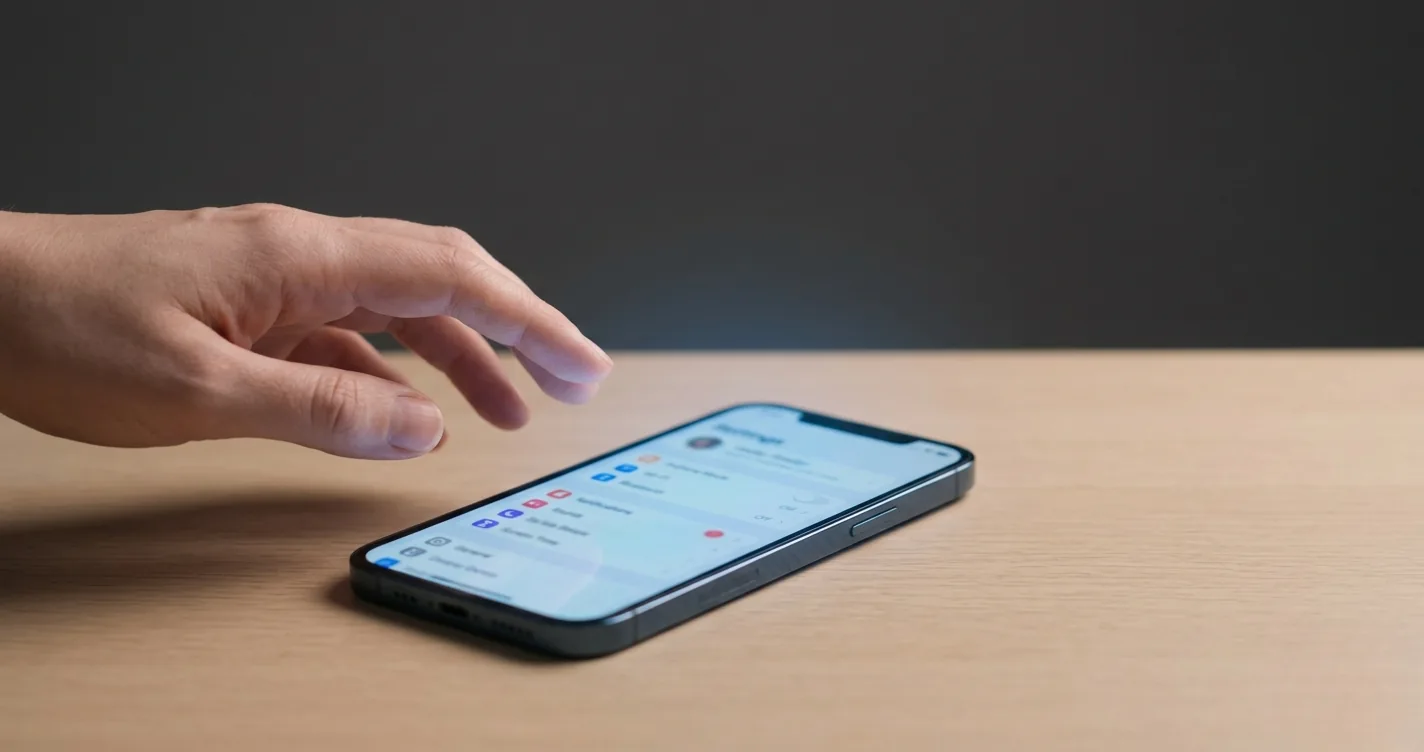
You handed your child an iPhone. Now you need to lock it down. The good news: Apple gives you a solid set of built-in tools. The bad news: those tools are buried across five different settings screens, and the defaults protect almost nothing. This guide shows you exactly how to put parental controls on iPhone — every setting, every screen, in the right order — so you can set it up once and manage it remotely from your own device.
Whether your child is 6 or 16, the process starts in the same place: Family Sharing. From there, you will configure how to set parental controls on iPhone through Screen Time, Content Restrictions, Communication Limits, and Ask to Buy. Each section below walks through the exact steps with the menu paths you need to follow.
Before You Start: Family Sharing and Your Child’s Apple Account
Every parental control on iPhone depends on Family Sharing. Without it, you cannot manage your child’s Screen Time remotely, approve their app downloads, or enforce content restrictions from your own device. This is the foundation — skip it and nothing else works properly.
What Family Sharing does
Family Sharing links up to six Apple Accounts into a single family group. Once your child’s account is part of your family, you get remote access to their Screen Time settings, automatic Ask to Buy prompts, shared subscriptions, and location sharing through Find My. It costs nothing and takes about five minutes to set up.
Setting up Family Sharing
Under 13 vs. 13–17: What Apple treats differently
Apple draws a hard line at age 13 (it varies by country). Children under 13 must have a child Apple Account created by a parent — they cannot create one on their own. Apple Screen Time parental controls are automatically enabled for these accounts, and Ask to Buy is turned on by default.
Teens 13 to 17 have more autonomy. They can create their own Apple Account, and Apple gives them the ability to request changes to restrictions. You can still manage their Screen Time remotely through Family Sharing, but some settings require their cooperation rather than your unilateral control.
How to Turn On Screen Time for Your Child’s iPhone
With Family Sharing in place, you can now enable and configure Screen Time on your child’s device without touching their phone. Here is how to turn on parental controls on iPhone through Screen Time.
App Limits and Downtime: Control When and How Long
Screen Time gives you two primary time-based controls: App Limits (how long per day) and Downtime (when the device is off-limits entirely). Together, they cover most of what parents need for basic iphone parental controls around daily usage.
Setting App Limits
Setting Downtime
Content and Privacy Restrictions: The Settings Most Parents Miss
App Limits control how long your child uses their phone. Content and Privacy Restrictions control what they can access. This is where you filter explicit content, block adult websites, restrict app installations, and prevent changes to privacy settings. Most parents never touch these settings — and they are the ones that matter most.
Content Restrictions worth setting
- App Store purchases: Disable “Installing Apps” if you want full control via Ask to Buy, or set it to require the passcode for every download.
- Content ratings: Under Content Restrictions, set age-appropriate ratings for Movies, TV Shows, Apps, and Music. For children under 10, set Apps to “4+” or “9+.” For teens, “12+” is usually appropriate.
- Web content: Choose Limit Adult Websites (Apple’s automatic filter) or Allowed Websites Only (a whitelist you curate). For children under 12, the whitelist approach is safer.
- Siri: Disable “Web Search Content” and “Explicit Language” under Siri restrictions. Children can bypass web filters by asking Siri to search for content directly.
- Game Center: Disable multiplayer games and adding friends if your child is young. Game Center is an often-overlooked channel for contact with strangers.
Privacy Restrictions
Under Privacy, you can lock down Location Services, Contacts, Photos, and Microphone access. The most important setting: prevent your child from changing their Location Services setting so you can always find them through Find My. Set it to “Don’t Allow Changes.”
For social media apps specifically, review our Instagram parental controls guide — each platform has its own in-app restrictions that work alongside Apple’s device-level controls.
Communication Limits: Control Who Your Child Can Contact
Communication Limits let you control who your child can call, text, and FaceTime — both during allowed screen time and during Downtime. This is a critical safety layer that many parents overlook when figuring out how to set up parental controls on iPhone for child over 13 or younger.
Ask to Buy: Approve Every App and Purchase
Ask to Buy sends you a notification every time your child tries to download an app (free or paid), make an in-app purchase, or buy media from the iTunes Store. You approve or decline from your own device. It is one of the simplest and most effective parental controls Apple offers.
For children under 13 with a child Apple Account, Ask to Buy is enabled by default. For teens 13 to 17, you need to turn it on manually — and they can request that you turn it off (though you have the final say).
What Ask to Buy catches
- New app downloads (free and paid)
- In-app purchases (including game currencies and subscriptions)
- Movie, music, and book purchases from Apple’s stores
What it does not catch
- Apps your child already has installed — re-downloads from their purchase history go through without approval
- Free app updates
- Content accessed within apps (like YouTube videos or Safari websites)
What Changes When Your Child Turns 13
Apple treats the 13th birthday as a significant milestone. Several parental controls shift when your child’s Apple Account crosses this threshold. Understanding these changes helps you prepare instead of being surprised.
| Feature | Under 13 | 13–17 |
|---|---|---|
| Apple Account creation | Must be created by parent | Can create their own |
| Ask to Buy | On by default, cannot be disabled by child | Must be enabled manually; teen can request removal |
| Screen Time | Parent has full remote control | Parent has remote control; teen can request more time |
| Content Restrictions | Fully parent-controlled | Parent-controlled, but teen sees restriction details |
| Communication Limits | Fully parent-controlled | Parent-controlled; teen can request changes |
| Location sharing (Find My) | Cannot opt out of family location sharing | Can choose to stop sharing location |
| iCloud data access | Parent can view and manage | More privacy protections apply |
Preparing for the transition
The shift at 13 does not mean you lose control. It means the dynamic changes from enforcement to negotiation. Here is what to do:
- Review all settings before their birthday. Apple may prompt changes to your child’s account. Know what is currently in place so you can re-enable anything that resets.
- Have a conversation about expectations. Explain which controls will stay in place and why. Teens who understand the reasoning are more likely to cooperate than those who feel surveilled.
- Enable Ask to Buy manually. It turns off by default at 13. Go to Family Sharing and re-enable it immediately.
- Agree on a location-sharing policy. Since teens can opt out of Find My sharing, make location sharing part of your family agreement rather than a forced control.
Why Built-In Controls Aren’t Enough
Apple’s parental controls are solid for setting boundaries. They tell your child’s phone what not to do. But they do not help your child want to follow those boundaries. This is the gap that every parent eventually notices: Screen Time can block an app at 60 minutes, but it cannot prevent the meltdown that follows.
The enforcement problem
Built-in controls work through restriction. Block this app. Limit that category. Shut down at bedtime. Every interaction your child has with these controls is negative — a notification that says “Time Limit Reached,” a greyed-out app icon, a locked screen. Over time, this creates a pattern where the phone becomes the enemy and you become the enforcer.
Children (especially ages 6 to 12) respond better to systems where they earn screen time rather than lose it. When finishing homework or completing a focus session unlocks 15 minutes of their favorite game, the motivation shifts from resentment to accomplishment.
What a complementary approach looks like
The best approach combines Apple’s built-in controls with a tool that adds the motivation layer. Apple handles the hard boundaries — content filtering, web restrictions, communication limits. A tool like Timily handles the daily experience — Focus Timer sessions that earn screen time, and Collaborative App Blocking where your child is part of the decision about which apps to limit.
The Focus Timer turns “put your phone down” into a structured session with a clear reward. Collaborative App Blocking lets your child help choose which distracting apps to block during focus time — so the restriction feels like their decision, not yours. The result: fewer battles, more buy-in, and the same boundaries you would have set anyway.