
Why a Physical Chart Works Better Than Verbal Rules
Most families start managing screen time with verbal rules: “You can have 30 minutes after homework.” It sounds reasonable. But verbal rules rely on memory, and memory is unreliable for both parents and kids. An earn screen time chart solves this by putting the rules on paper, on the wall, where everyone can see them.
A physical chart does three things that spoken rules cannot. First, it makes expectations visible. There is no arguing about what was or was not said yesterday. Second, it shifts ownership to the child. Instead of asking permission, the child checks their chart and knows exactly how many points they have earned. Third, it reduces the number of daily negotiations. The chart becomes the authority, not you.
Research on self-determination theory shows that children are more motivated when they feel a sense of autonomy and competence. A chart gives them both: the autonomy to choose which tasks to complete and the competence of watching their points grow. The result is less resistance and fewer arguments about when screen time starts and stops.
How to Design Your Earn Screen Time Chart Layout
The best screen time chore chart layouts are simple enough that a 5-year-old can read them and sturdy enough to survive daily use. Here is how to design one that works.
The Weekly Grid Format
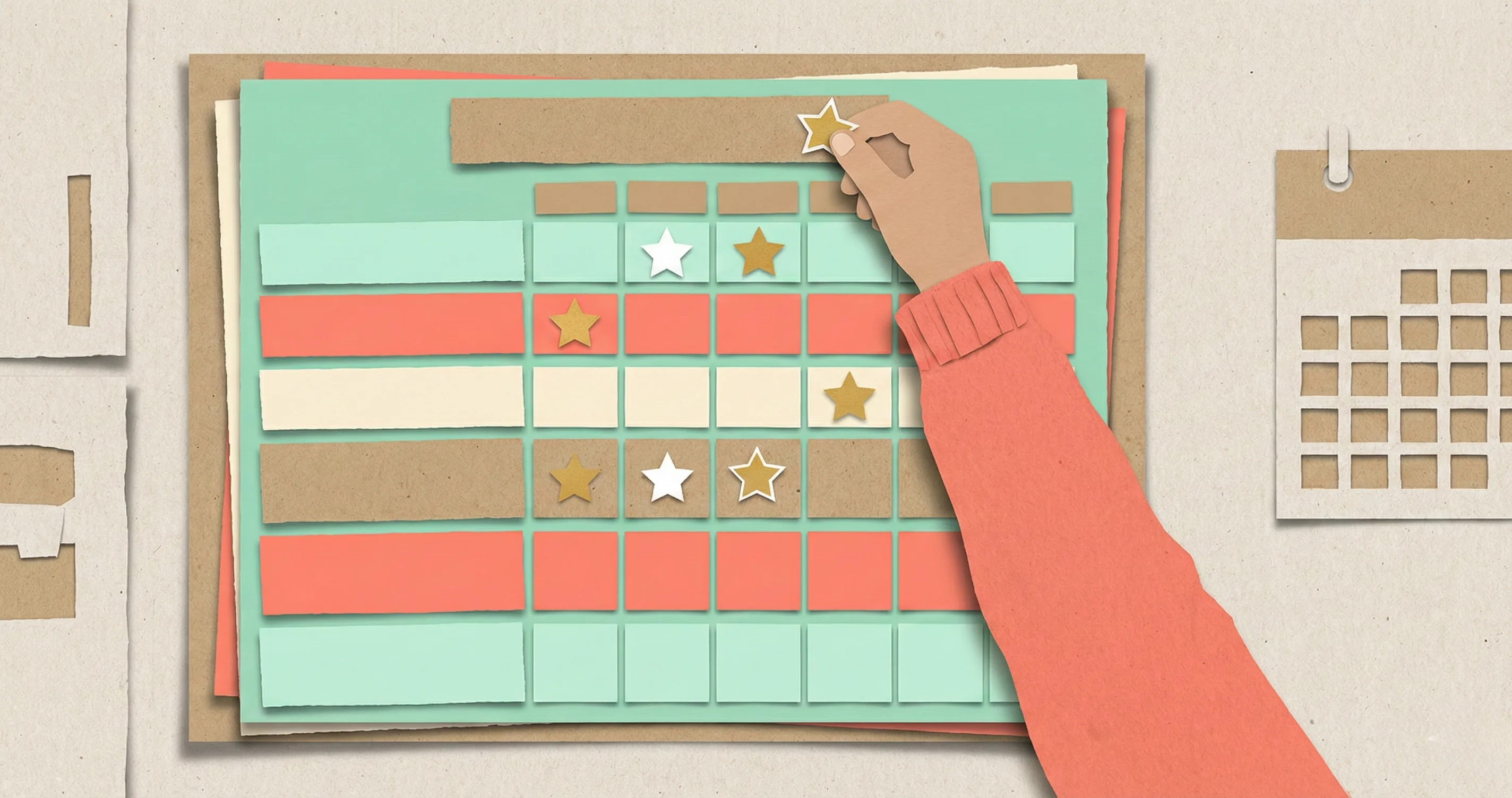
Use a grid with seven columns (one per day) and 5–8 rows (one per task). Each cell gets a checkbox, sticker spot, or space for a tally mark. At the bottom of each column, add a “Total Points” row where your child adds up their daily score.
Why weekly instead of daily? A weekly chart lets kids see patterns. They notice that they earned more on Tuesday than Monday. They start planning ahead: “If I do two extra tasks today, I can save up for a longer gaming session on Saturday.” That kind of forward thinking is exactly the habit you want to build.
What to Include on the Chart
- Task column: Short task names with a small icon or emoji next to each one (a book icon for reading, a shoe for outdoor play). Visual cues help pre-readers and make the chart faster to scan.
- Point value: Write the points earned next to each task. Not all tasks need to be worth the same amount.
- Daily columns: One per day of the week. Use checkboxes or sticker spots.
- Redemption rate: Print the exchange rate directly on the chart: “5 points = 30 min screen time.” No ambiguity.
- Reward menu: A small box listing what screen time options are available (gaming, YouTube, movie, creative apps).
Printable vs. Whiteboard
A free printable screen time chart works well if you like starting fresh each week. Print a new one every Monday, tape it to the fridge, and recycle the old one. The downside: you need to reprint weekly, and some kids lose motivation when last week’s progress disappears.
A laminated chart or small whiteboard solves the reprint problem. Use dry-erase markers to check off tasks and wipe clean each week. The physical act of erasing and starting fresh can actually feel satisfying to kids — like a reset button.
Choosing Tasks That Motivate Without Backfiring
The tasks on your screen time earning chart matter more than the chart’s design. Pick the wrong ones and the system feels like punishment. Pick the right ones and it teaches responsibility naturally.
The 3 Task Categories
- Quick wins (1 point each): Tasks that take under 5 minutes and require minimal effort. Making the bed, brushing teeth, putting shoes away, feeding a pet. These guarantee your child earns at least some points every day, which prevents discouragement.
- Effort tasks (2–3 points each): Tasks that require 15–30 minutes of sustained focus. Completing homework, 30 minutes of reading, practicing an instrument, outdoor play for 30 minutes. These are the core of the system.
- Bonus tasks (1–2 points each): Optional tasks that rotate weekly to keep things interesting. Helping cook dinner, organizing a bookshelf, writing in a journal, doing a puzzle. These prevent the “I already finished my chart” problem where kids complete the minimum and stop.
Tasks to Avoid
- Tasks they already do reliably. If your child already brushes their teeth without prompting, putting it on the chart cheapens the system. Reserve chart spots for behaviors you are actively trying to build.
- Vague tasks. “Be good” or “help around the house” invites arguments. Every task must have a clear completion criteria that both parent and child agree on.
- Tasks that feel punitive. Cleaning as a chore is fine. Cleaning as a consequence for bad behavior is not. The chart should feel like a path to earning, not a list of corrections.
Setting Point-to-Screen-Time Ratios by Age
The redemption ratio — how many points equal how much screen time — is where most screen time reward charts break down. Set the ratio too high and kids give up. Set it too low and they earn unlimited screen time by lunch.
Recommended Starting Ratios
- Ages 4–6: 3 points = 20 minutes of screen time. Young kids need fast feedback. If the payoff is too far away, they lose interest before earning their first reward. The AAP recommends limiting total screen time to about 1 hour per day for this age group, so structure the chart so the maximum earnable time stays within that range.
- Ages 7–9: 5 points = 30 minutes. This is the sweet spot for most families. A child who completes 5 tasks earns half an hour, which feels fair and achievable. Most kids at this age can earn 1–1.5 hours of screen time daily if they complete all their tasks.
- Ages 10–12: 7 points = 30 minutes, or use a weekly bank. Older kids respond well to saving up points across multiple days for a bigger reward, like a full movie or an hour-long gaming session on the weekend. This teaches delayed gratification.
Building in a Daily Cap
Even with an earn-based system, you need a ceiling. Otherwise, a hyper-motivated child does 15 tasks and earns 3 hours of screen time on a Tuesday. Set a maximum: “You can earn up to 60 minutes on weekdays and 90 minutes on weekends, no matter how many points you have.” Extra points roll over to the next day or convert into a non-screen reward.
Non-Screen Rewards on the Menu
The most effective screen time earning charts include at least one non-screen reward option. Examples: choosing what is for dinner (10 points), staying up 15 minutes past bedtime on Friday (8 points), a trip to the park with a parent (12 points). These alternatives prevent screen time from becoming the only thing your child values.
Launch Day: Introducing the Chart Without Resistance
How you introduce the chart determines whether your child sees it as a fun challenge or an annoying new rule. Here is a step-by-step launch plan.
- Pick a format. Choose a weekly grid with days across the top and tasks down the left side. Use a whiteboard for reusable tracking or print a fresh chart each week.
- Choose 5–8 daily tasks. List tasks that mix quick wins (make bed, brush teeth) with effort tasks (reading, homework, outdoor play). Include 1–2 tasks your child actually enjoys.
- Set point values. Assign 1 point to quick tasks and 2–3 points to harder ones. Set a clear redemption rate such as 5 points equals 30 minutes of screen time.
- Define the reward menu. List 3–5 screen time options kids can redeem points for, like gaming, YouTube, or movie time. Include one non-screen reward for variety.
- Post it and start together. Hang the chart at your child’s eye level. Walk through every task and reward together on day one so there are no surprises.
The Collaborative Setup (Critical)
Do not present the chart as a finished product. Instead, build it together. Sit down with your child and say: “We are going to make a chart that lets you earn your own screen time. Which tasks do you think should be on it?”
Let them suggest at least 2–3 tasks. They will often suggest things you would not have thought of, and the tasks they choose are the ones they are most likely to complete. If they suggest something unreasonable (“play video games for 1 hour”), redirect: “That could be a reward, not a task. What could you do to earn that?”
This collaborative approach mirrors the concept behind Timily’s Collaborative App Blocking feature, where parents and kids decide together which apps are off-limits during focus time. When children help create the rules, they are far less likely to resist them.
The First Week: Expect Imperfection
The first week is a calibration period, not a test. Your child will forget some tasks. You will forget to check the chart. The point values might feel wrong. All of this is normal. At the end of week one, sit down together and ask: “What worked? What felt unfair? What should we change?” Then adjust the chart for week two.
5 Reasons Screen Time Charts Fail (and How to Fix Each One)
Most free printable earning screen time charts end up in a drawer within a month. Here are the five most common failure modes and how to prevent each one.
1. The Chart Becomes Invisible
Problem: The chart gets buried under mail, falls behind the fridge, or simply blends into the background. Solution: Mount it on a clipboard at eye level or use a dedicated magnetic whiteboard. Some families put the chart next to the TV or gaming console so it is the last thing a child sees before requesting screen time.
2. Parents Forget to Track
Problem: The child completes tasks but the parent does not check them off, leading to frustration and lost motivation. Solution: Set a daily 5-minute “chart check” routine. Right after dinner works well — it takes less than 2 minutes to review what was completed and tally points. If consistent tracking is a struggle for your family, this is a sign you may benefit from an app that tracks automatically.
3. The Novelty Wears Off
Problem: By week 3, the same tasks and stickers feel boring. Solution: Rotate 2–3 tasks every two weeks. Keep the core tasks (homework, reading) constant, but swap out bonus tasks. Also rotate the visual elements — new sticker sheets, different colored markers, or a redesigned chart layout.
4. The Rewards Feel Unreachable
Problem: The child needs 10 points for 30 minutes but can only realistically earn 6 per day. They give up by Wednesday. Solution: Recalculate. Your child should be able to earn their first screen time block within the first half of each day. If they cannot, lower the ratio or add more point-earning opportunities.
5. Siblings Create Conflict
Problem: One child earns screen time quickly while the other struggles, leading to jealousy and arguments. Solution: Give each child their own chart with age-appropriate tasks and separate point accounts. Never compare progress out loud. If one child earns screen time and the other has not, the first child uses headphones or plays in a different room.
When to Upgrade from a Paper Chart to an App
A free printable screen time chart is a great starting tool. But there are specific signs that your family has outgrown it and is ready for a digital solution.
Signs It Is Time to Switch
- You are on your fourth chart redesign and still struggling with consistency. The problem is not the chart design — it is the manual tracking.
- You have multiple kids and managing separate paper charts has become a logistics headache.
- Your child is over 8 and finds sticker charts “babyish.” Digital systems with progress bars and animations maintain engagement at older ages.
- Co-parenting across two households means the chart only exists in one home. An app syncs rules and progress everywhere.
- Your child has started gaming the system — checking off tasks they did not actually complete. Apps with parent verification solve this.
The Chart-to-App Transition
Do not switch cold turkey. Run both systems in parallel for one week. Let your child see that the app tracks the same tasks and rewards they are already used to. Once they are comfortable, retire the paper chart.
Timily’s Task & Chore System works on this same earn-before-play principle. Parents set offline tasks, kids complete them and earn points, and those points unlock specific apps. It is the digital version of the chart you have been building — minus the manual tracking and the dry-erase marker that keeps disappearing.
For a detailed comparison of the best apps for this, see our earn screen time app comparison guide.