
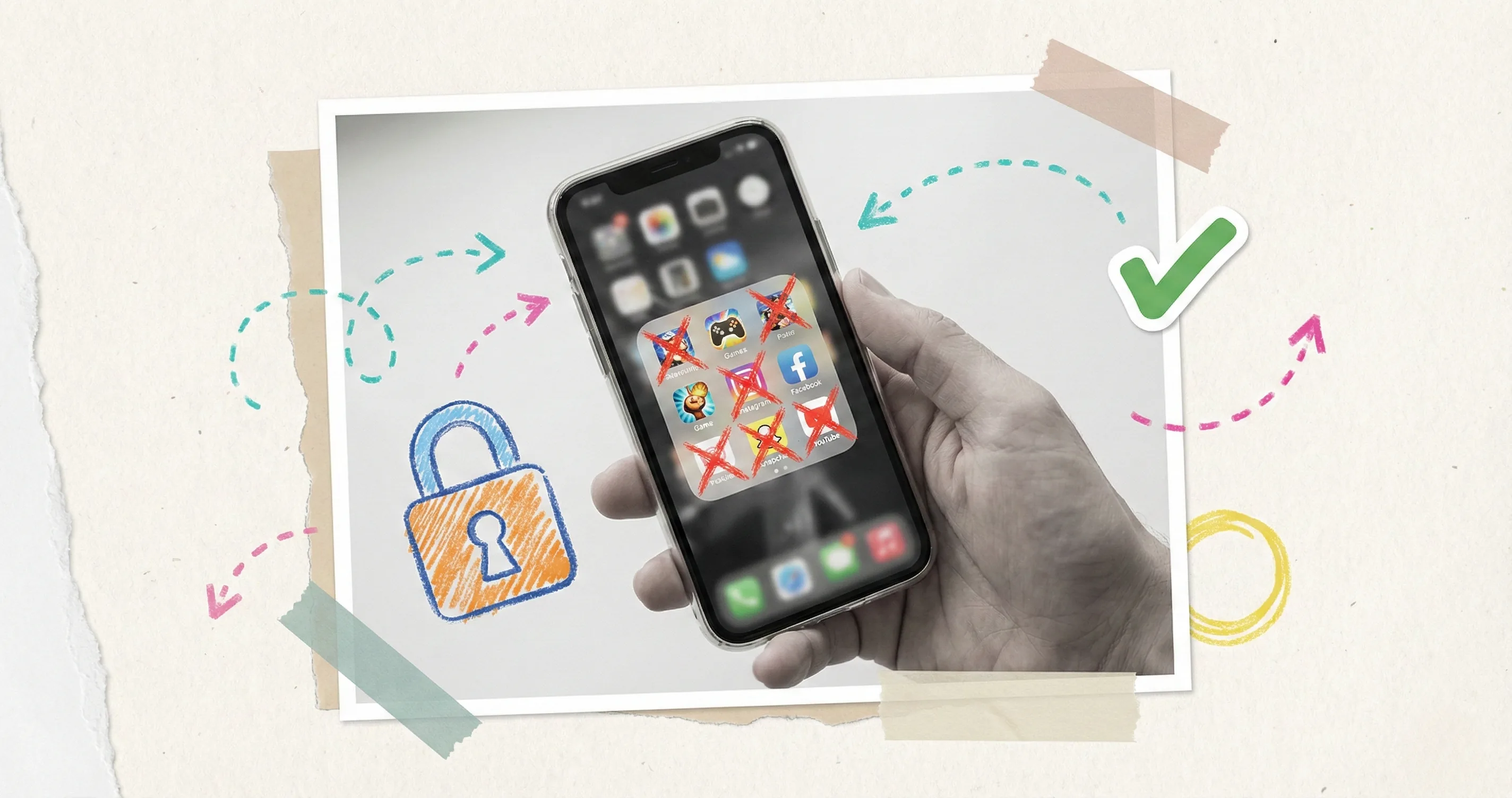
You searched for how to block apps on kids phone because you need a clear answer, not a lecture. Whether your 8-year-old discovered TikTok or your teen cannot stop opening Snapchat during homework, this guide gives you the exact steps to lock down specific apps on both iPhone and Android — plus scheduling, third-party tools, and the one thing most parents forget after setting up blocks.
Every method below is free and built into the phone your child already uses. You do not need to buy a separate app blocker for kids unless you want features beyond what Apple and Google offer. We will cover those options too.
How to Block Apps on iPhone Using Screen Time (Step-by-Step)
Apple’s Screen Time is the fastest way to block apps on iPhone without installing anything. It is built into every iPhone running iOS 12 or later. Here is exactly what to do.
Step 1: Open Screen Time settings
Go to Settings > Screen Time on your child’s iPhone. If Screen Time is not enabled, tap Turn On Screen Time and follow the prompts. Choose This is My Child’s iPhone when asked.
Step 2: Set a Screen Time passcode
Tap Use Screen Time Passcode and create a 4-digit code your child does not know. This prevents them from changing the settings you are about to configure. Use a code that is different from your phone unlock passcode.
Step 3: Block apps by age rating
Tap Content & Privacy Restrictions > Content Restrictions > Apps. Choose an age rating: 4+, 9+, 12+, or 17+. Any app rated above your selection disappears from the Home Screen immediately. This is the simplest way to how to restrict apps on iPhone in bulk.
Step 4: Block specific apps with App Limits
Go back to Screen Time > App Limits > Add Limit. Select individual apps or entire categories (Social Networking, Games, Entertainment). Set the daily time limit to 1 minute if you want the app effectively blocked. Tap Add. When the minute is used, the app locks for the rest of the day.
Step 5: Use Allowed Apps to remove built-in apps
Go to Content & Privacy Restrictions > Allowed Apps. Toggle off any built-in apps you do not want your child to access, such as Safari, FaceTime, or the App Store. Disabling the App Store prevents your child from downloading new apps entirely.
How to Block Apps on Android Using Family Link
Google’s Family Link is the Android equivalent of Screen Time. It works on phones and tablets running Android 7.0+. Here is how to block an app on Android step by step.
Step 1: Install Google Family Link
Download the Family Link app on your phone (the parent device). If your child does not have a Google Account, create one during setup. Link it to your Family Link account by following the on-screen pairing process.
Step 2: Open your child’s app activity
In Family Link, tap your child’s name, then go to Controls > App limits. You will see a list of every app installed on their device along with daily usage data.
Step 3: Block specific apps
Find the app you want to block and tap it. Select Block. The app immediately becomes unavailable on your child’s device. Repeat for each app you want to restrict.
Step 4: Set daily time limits per app
Instead of a full block, tap an app and select Set limit. Choose the daily time allowance — for example, 30 minutes for YouTube or 1 hour for games. When the limit is reached, the app locks until the next day.
Step 5: Restrict new app installs
Go to Controls > Google Play. Under Require approval for, select All content. Your child will need your approval before downloading any new app from the Play Store. You receive a notification on your phone and can approve or deny with one tap.
How to Block Specific Apps Like TikTok, Snapchat, and Discord
The steps above work for any app, but parents most often ask about a handful of specific ones. Here is how to handle the apps that cause the most concern. For a full breakdown of which apps pose real risks, see our guide on the most dangerous apps for kids in 2026.
TikTok
TikTok is rated 12+ on the App Store and T (Teen) on Google Play. On iPhone, setting the Content Restriction age rating to 9+ or 4+ hides TikTok automatically. On Android, block TikTok directly through Family Link’s app list. If your child does not have TikTok installed yet, disable the App Store (iPhone) or require Play Store approval (Android) to prevent them from downloading it.
Snapchat
Snapchat is rated 12+ on both platforms. Block it using the same age-rating method on iPhone or the direct block in Family Link on Android. If you choose to allow Snapchat with limits, use App Limits (iPhone) or daily limits (Android) to cap usage to a specific amount of time per day.
Discord
Discord is rated 17+ on the App Store, which means setting the age restriction to 12+ or below on iPhone automatically removes it. On Android, use Family Link to block it directly. Discord’s age rating is higher because it includes user-generated content and private messaging with strangers — two features that are difficult to monitor.
YouTube
YouTube is trickier because it serves both educational and entertainment content. Instead of blocking it outright, consider using YouTube Kids (for children under 13) or setting a daily time limit through Screen Time or Family Link. On iPhone, you can also block the regular YouTube app and only allow YouTube Kids through the Allowed Apps settings.
How to Schedule App Blocking for Homework and Bedtime
Blocking apps permanently is one approach. But most parents want something more flexible: apps that work during free time but lock automatically during homework, dinner, and sleep. Here is how to block apps at certain times iPhone and Android both support.
iPhone: Use Downtime
Downtime is the scheduling feature inside Screen Time. Go to Settings > Screen Time > Downtime. Toggle it on and set the schedule. During Downtime hours, only apps you have specifically marked as Always Allowed will work. Everything else shows a lock screen.
For homework time, set Downtime from 4:00 PM to 6:00 PM on school days. For bedtime, schedule 8:30 PM to 7:00 AM. You can customize the schedule differently for each day of the week.
Always Allowed apps typically include Phone, Messages, Maps, and any educational apps your child uses for schoolwork. Add or remove apps from the Always Allowed list in Screen Time > Always Allowed.
Android: Use Family Link bedtime and app timers
Family Link has a Bedtime feature that locks the entire device during set hours. Go to Controls > Bedtime and set the schedule. During bedtime, the phone can only make emergency calls.
For homework hours, use the daily app limit feature creatively: set limits low enough that they run out before homework time. Alternatively, use the Lock now button in Family Link to instantly lock all apps when your child sits down to study, then unlock when they finish.
Timily: Collaborative scheduling
If you want scheduling that feels less like surveillance and more like teamwork, Timily’s Collaborative App Blocking lets parents and kids decide together which apps to lock during focus time. The child sees which apps are paused and why, and they can earn those apps back by completing tasks. This turns the block from a punishment into a goal.
Best Third-Party App Blockers for Kids (2026 Comparison)
The built-in tools cover most families. But if you need cross-platform management, advanced filtering, or location-based rules, here are the best third-party app blockers for kids in 2026.
Bark
Bark monitors content across 30+ apps and platforms, including texts, emails, and social media. It alerts you to potential issues like cyberbullying or inappropriate content rather than blocking everything outright. Best for parents who want monitoring plus selective blocking. Pricing starts at $5/month.
Qustodio
Qustodio offers per-app time limits, web filtering, and location tracking. It works across iOS, Android, Windows, Mac, and Kindle. The cross-platform coverage makes it ideal for families where kids use multiple devices. Plans start at $55/year for up to 5 devices.
Google Family Link (free)
If your child uses Android, Family Link is hard to beat for the price (free). It covers app blocking, time limits, location, and Play Store approval. The main limitation: it does not work on iOS devices.
Apple Screen Time (free)
Screen Time handles everything for iPhone and iPad users. The limitation is that it only works within the Apple ecosystem — if your child also uses a Windows laptop or Android tablet, you need a separate tool for those devices.
When to go third-party
Use a third-party app blocker for kids when you need:
- Cross-platform management (your child uses both iOS and Android/Windows devices)
- Content monitoring beyond just blocking (cyberbullying alerts, text scanning)
- More granular scheduling than Downtime or bedtime mode offers
- Web filtering that goes beyond blocking entire apps
If your child uses a single iPhone, Apple Screen Time does the job without adding cost or complexity. The same applies to Android families with Family Link.
Why Blocking Apps Alone Isn’t Enough
You now know how to block apps on kids phone across every platform. But here is what most guides skip: blocking is only half the solution.
Kids who face hard blocks without understanding why tend to do two things. First, they find workarounds — kids bypassing screen time restrictions is more common than most parents realize. Second, they never learn to regulate themselves. The moment the block is removed (and eventually it will be), they have no internal framework for making good choices.
Blocking vs. teaching
Blocking an app tells a child: you are not allowed. Teaching a child why an app is blocked tells them: here is why, and here is how you can earn access when you are ready. The first approach creates conflict. The second creates understanding.
This does not mean you should avoid blocking altogether. For young children and genuinely harmful content, hard blocks are necessary and appropriate. But for tweens and teens, a collaborative approach produces better long-term outcomes than restriction alone.
Pair blocking with earning
The most effective families combine blocking with an earn-based system. Blocked apps are not permanently off-limits — they are goals. Complete homework, and TikTok unlocks for 30 minutes. Finish chores, and gaming time is earned. This reframes the block from a punishment into a reward waiting to be claimed.
This is the core idea behind Timily’s Reward & Redemption System. Kids earn points through focus sessions, completed tasks, and daily challenges. Those points can be redeemed to unlock specific apps for a set period of time. The child learns cause and effect: effort leads to access, not arguing.
Have the conversation
Before you set up any block, talk to your child. Explain what you are doing and why. Use plain language:
- “I’m blocking TikTok during homework because it makes it hard to focus. You can use it after your work is done.”
- “Discord is blocked for now because it’s rated for older teens. When you’re 15, we’ll revisit it together.”
- “I’m setting a bedtime lock so your phone helps you sleep instead of keeping you up.”
Children who understand the reasoning behind a rule are far less likely to fight it — and far less likely to search for workarounds.