
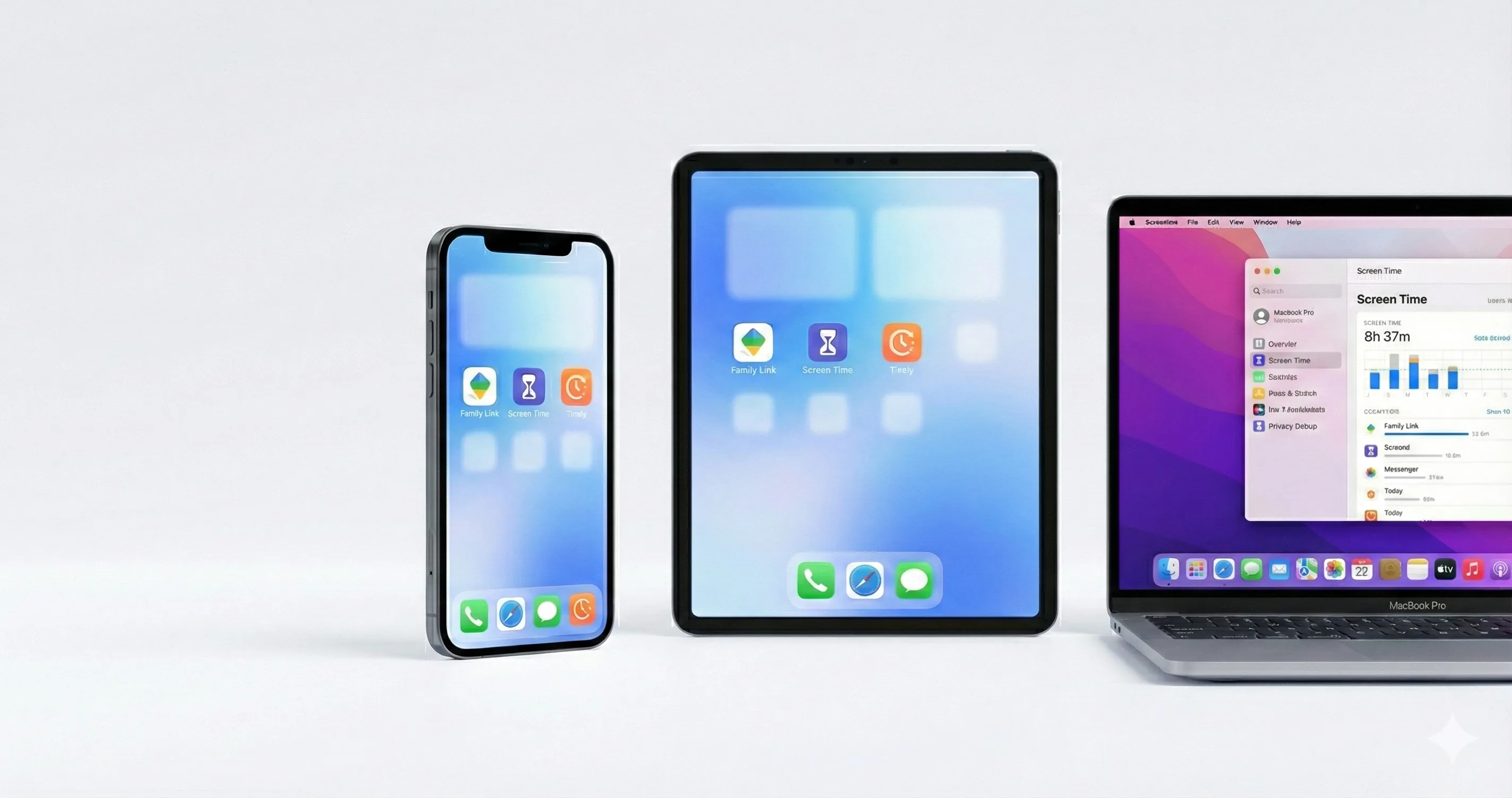
Your child has spent the last three hours swiping through social media, and you've said "put the phone down" at least five times. Sound familiar? Finding the best app to limit screen time is one of the most practical—and often overlooked—ways to transform this daily battle into a calm, structured system.
But the app landscape is crowded: Apple Screen Time comes built-in; Google Family Link offers Android power; third-party apps like Bark, Qustodio, and even Timily promise smarter alternatives. Which one actually works? The answer depends on your devices, your child's age, and whether you want collaborative tools or pure enforcement.
In this guide, we'll walk you through the best apps to limit screen time, show you how to set them up in 10 minutes, and explain the trade-offs so you can pick the right one for your family.
Why You Need an App to Limit Screen Time
Willpower alone doesn't work. By design, apps are engineered to be addictive—infinite scroll, algorithmic feeds, notification badges all trigger dopamine hits. Telling your child to "just put it down" is like asking someone in a casino to ignore the slot machines.
A parental control app creates a hard boundary: the app locks after bedtime. Notifications silent during homework. Usage tracked so both of you see the patterns. This removes willpower from the equation. Instead of negotiating every single day, the rules are already built in. Whether you choose an app blocker for kids or a time-limit tool, the goal is the same: predictable, transparent limits.
The added benefit: Apps let you track usage over weeks and months. You'll spot trends—like your child always exceeds limits on weekends, or spends 90 minutes on TikTok right after school. These insights spark better conversations than guessing.
How to Choose the Best App for Your Family
Before comparing features, ask yourself three questions:
1. What devices do we use?
If your household is 100% Apple (iPhone, iPad, Mac), Apple Screen Time handles everything for free. Mostly Android? Google Family Link is your baseline. Mix of both? You'll need either a third-party app that covers both platforms, or two separate tools.
2. What's your parenting style?
Do you believe in gentle parental control through collaboration, or do you prefer clear rules enforced without negotiation? Some apps (like Timily) emphasize earned rewards and buy-in; others (like Bark) lean on monitoring and enforcement. Your philosophy should match the app's design.
3. What specific behaviors need limits?
Are you trying to stop all-night TikTok binges? Protect homework time? Enforce bedtime? Or do you need visibility into what apps your child is even using? Different apps excel at different goals:
- App limits + schedules: Screen Time, Family Link, Timily
- Individual app blocking: Screen Time, Family Link, Bark, Qustodio
- Usage tracking + insights: Bark, Qustodio, Timily
- Reward-based engagement: Timily, some Qustodio tiers
Best Apps Compared: Free vs Paid Options
Here's a side-by-side comparison of the most popular options parents use, whether you're looking for a screen time limit app, a free app to limit screen time, or a device-specific tool:
| App | Best For | Cost | Devices | Key Features |
|---|---|---|---|---|
| Apple Screen Time | iPhone/iPad families | Free (built-in) | iOS, iPadOS | App limits, downtime, content restrictions, no setup required |
| Google Family Link | Android families | Free | Android | App limits, location, app approval, bedtime mode |
| Timily | Collaborative, rewards-based | Paid (iOS only) | iOS, iPadOS | Collaborative app blocking, focus challenges, task system, rewards, insights |
| Bark | Monitoring + enforcement | Paid | iOS, Android, Windows, Mac | Content monitoring, location, app blocking, alerts for risky behavior |
| Qustodio | Comprehensive control | Paid (free limited tier) | iOS, Android, Windows, Mac | Web filtering, app limits, location, YouTube controls, gaming timer |
The free-first approach: Start with Apple Screen Time or Family Link (depending on your device). They're powerful enough for most families. If you need more—like task rewards or cross-platform support—then consider paid options.
How to Set Up Family Link (iOS & iCloud)
Note: Google Family Link is primarily for Android devices. For iOS users, use Apple Screen Time instead (see next section).
If you have Android devices or a mixed household with an Android child phone:
- Go to Google Play Store on the parent's phone and download "Family Link."
- Open the app and tap "Set up Family Link" → sign in with your Google account.
- Select "Create an account for a child" (or link an existing one).
- On the child's device, sign in with their new Google account.
- In Family Link, tap the child's name → "App Management" → set App Limits (e.g., TikTok limited to 1 hour/day).
- Set Bedtime mode to lock the device automatically (e.g., 9 PM–7 AM).
- Approve apps: any new app download requires your permission.
Pro tip: Set daily limits per app rather than a global screen-time cap. Kids often complain that 2 hours daily isn't enough; but "30 min TikTok, 30 min YouTube, 1 hour games" feels fairer because it's transparent. For iOS users, Apple Screen Time offers similar fine-grained per-app limits if you want a screen time app for iphone.
How to Set Up Apple Screen Time
Apple Screen Time is the easiest option for iPhone families—it's built-in and requires zero downloads.
- On your child's iPhone, go to Settings → Screen Time.
- Tap "Turn On Screen Time" → choose "This is My Child's iPhone".
- Enter a Screen Time passcode (different from their device passcode).
- Set App Limits: tap "App Limits" → "Add Limit" → select categories or individual apps (e.g., Social Media, Gaming).
- Set Downtime: this locks all apps except essentials during set hours (e.g., 9 PM–7 AM, or during school).
- In Content & Privacy, restrict purchases and delete apps if needed.
- Go to Settings → Family Sharing and add your child's account so you can manage Screen Time remotely.
Pro tip: Use Downtime for nights and homework hours, and App Limits for daily caps on specific apps. This gives more flexibility than one global limit.
Additional Tools: Bark, Qustodio, and Third-Party Options
If the free tools don't cover your needs, these apps add monitoring, richer reporting, and cross-device support:
Bark
Best for: Parents who want content monitoring alongside screen time limits. Bark uses AI to flag risky messages, images, and behavior—not just "how much" screen time, but "what" your kid is seeing.
Cost: Around $99/year.
Setup: Download the Bark app, create an account, and add your child's device. It runs in the background and sends alerts for concerning content.
Qustodio
Best for: Families wanting a Swiss-Army-knife tool: app limits, web filtering, YouTube controls, location tracking, and gaming time limits all in one.
Cost: Free tier (basic limits), or $55-$100/year for full features.
Setup: Similar to Bark—download, create account, add devices. The interface is more technical than Bark, so it appeals to parents who like granular control.
Common Setup Mistakes to Avoid
Even with the right app, three mistakes can undermine your limits. These apply whether you're using Screen Time, Family Link, or any third-party tool for how to limit kids phone time:
Mistake #1: Enforcing limits without conversation
The app locks TikTok at 9 AM, and your child is furious because you never explained why. Better approach: Sit down the night before, explain the limit, and ask for their input. "I noticed you were on social media for 2.5 hours after school yesterday. That's cutting into homework and sleep. Let's set a 1-hour daily limit—what time of day works best for you?"
Mistake #2: Setting limits too strict, then loosening them
You set a 30-minute daily limit, then after a week of complaints, you bump it to 2 hours. The child learns that nagging works, and you lose credibility. Better approach: Start generous, then tighten if needed. Kids adjust better to limits that shrink over time than ones that explode after complaints.
Mistake #3: Ignoring the app yourself
You set limits on your child's phone but spend 4 hours daily on your own. They'll resent the rules and feel controlled. Better approach: Model what you're asking. If homework is device-free, you're also off your phone during that time. If bedtime is 9 PM, you're not scrolling in bed at 11 PM. Kids respect consistency far more than rules.
The collaboration key: If you're using a reward-based system like Timily, kids can earn unlocked time by completing tasks and challenges—turning limits from a punishment into an earned privilege.